![[personal profile]](https://www.dreamwidth.org/img/silk/identity/user.png)
![[identity profile]](https://www.dreamwidth.org/img/silk/identity/openid.png)
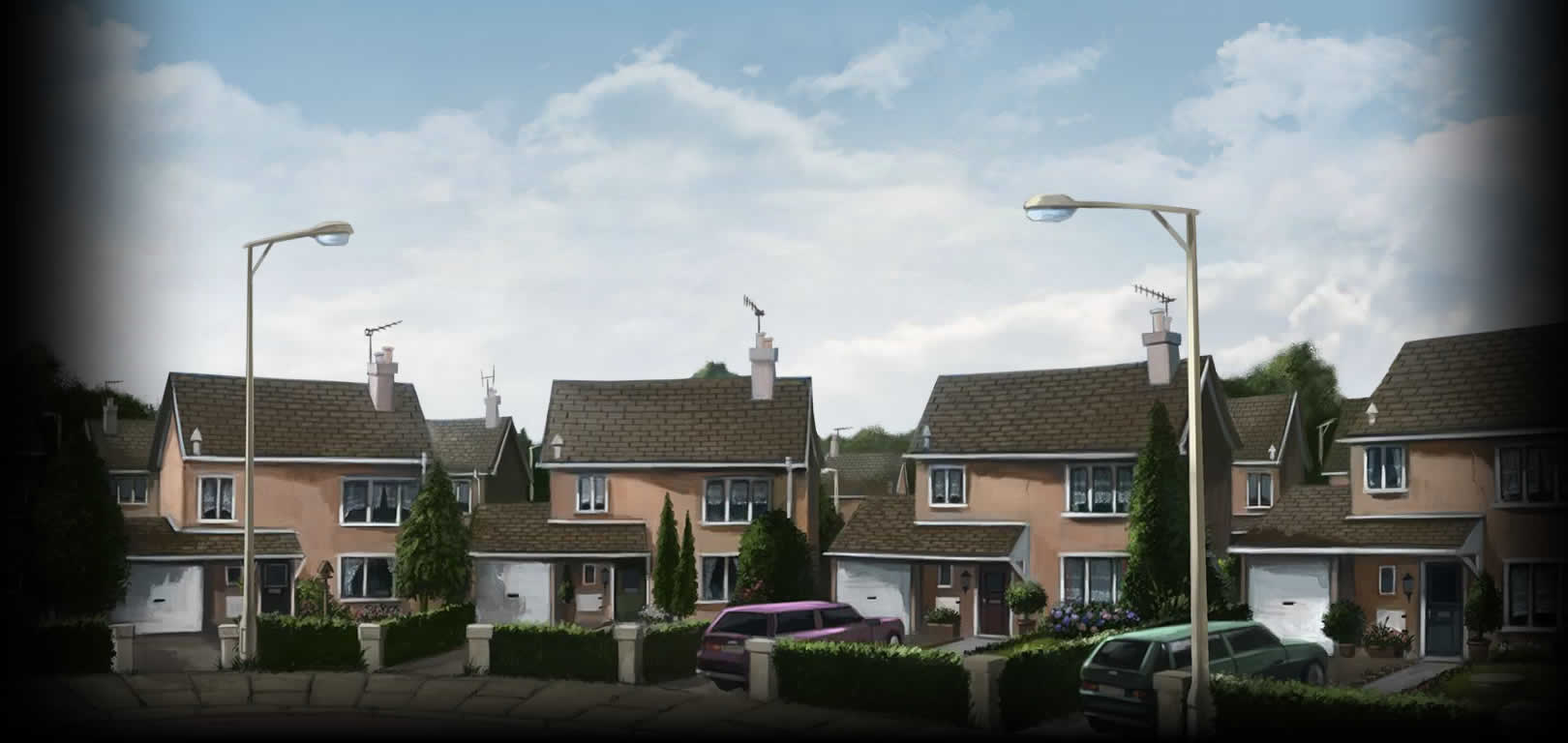
I love Pottermore, so I had to make a layout. This one is of what it looks like when you're not logged in. The title is also a play on Pottermore Insider.
| Pottermore Outsider | |
| preview |  Click here for live preview, then click on the layout's icon. |
| layout info | Based on Flexible Squares. Works for all account types. Tested in Firefox 7, Google Chrome 14 and Internet Explorer 8. There are 2 alternative backgrounds: just change the body background to bg2.jpg or bg3.jpg.You can't change widths in this layout, but you can adjust how high the header, maincontent and sidebar hang. The pictures are pulled up (by the negative numbers in the background lines - don’t change the numbers to something higher than 0) and when you move them, you have to change the top margin/padding (that's the first number in the lines) too. If you have a 258px high picture and it's pulled up 148px, you have a margin/padding of 110px. That's how you can calculate the numbers.For the #header you have to change the negative number in the background line and adjust the first number in padding.The picture (258px high) for the maincontent is in #content, the padding in #maincontent.The sidebar picture (257px) is in #content-outer, the margin in #sidebar. |
| how to implement this layout | Go to the Customize Journal page. Make sure Style System is S2. Choose the Flexible Squares layout. Go to Custom CSS » Use layout's stylesheet(s): No » Use layout's stylesheet(s) when including custom external stylesheet: No » Use external stylesheets: No insert custom stylesheet |
 | ||
| This profile layout has a fixed width, changing the width would mess up the layout. You can use http://fatfrog.info/Ma/A/layout/pottermoreoutsider/line.gif as a divider. Go to Edit Profile and insert the code into the Bio part. To copy the code, click in the text area and then press Ctrl+A and Ctrl+C. You don't have to use the lj-raw tags. With them you can only make line breaks/new paragraphs with <br> and <p>. Without the lj-raw tags you can also create line breaks and new paragraphs just by hitting the enter key. If you want to change the link color, put a font tag with a different color in your link. Like so: <a href="URL"><font color="#FFFF50">LINK TEXT</font></a> |
||
 | ||
6 comments | Leave a comment
![[livejournal.com profile]](https://www.dreamwidth.org/img/external/lj-community.gif)